アプリと接続:
Enjox Remote
トイ:
Kite Yami BoomPro

Android の場合:

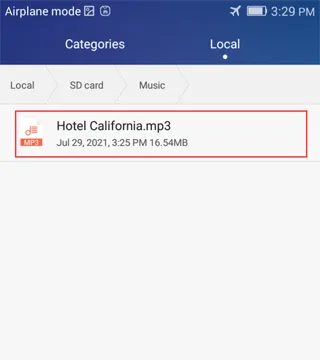
ダウンロードした音楽は、スマートフォンの内部メモリにある「Music」フォルダに保存してください。
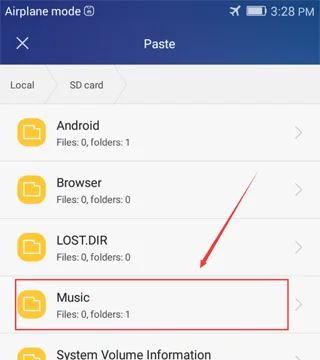
![Syncing music to an Enjox toy on Android (step 1)](/article/images/d37d58216d7d242ee12d2b373bfe5855.webp) ![Syncing music to an Enjox toy on Android (step 2)](/article/images/3ed45b66d0937d9246761bb98e724718.webp)

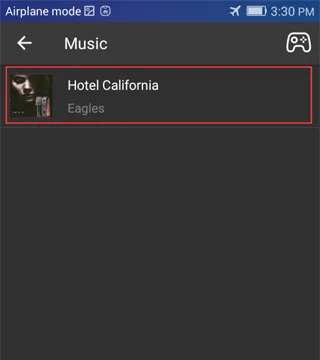
このフォルダ内の音楽がアプリに表示されます:

![Synced music folder shown in the Enjox Remote app on Android (step 3)](/article/images/73f55595ab971fe76a323660eedb864e.webp)

iPhone の場合:

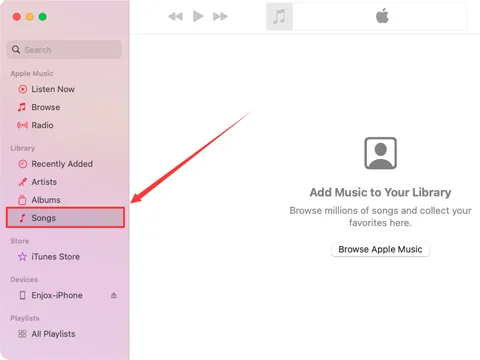
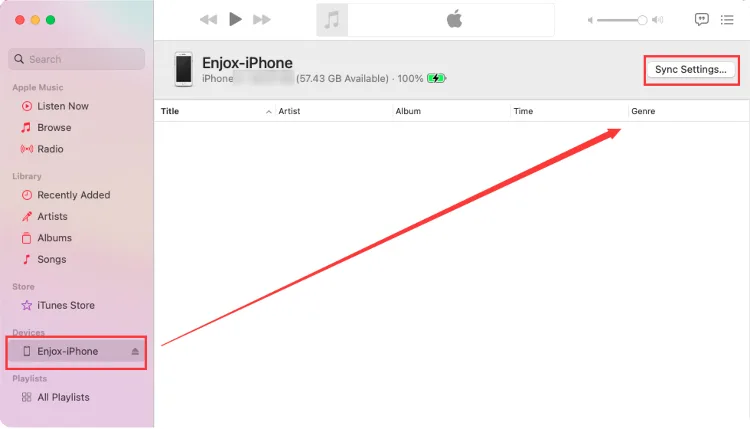
  1. iTunes にログインし、スマートフォンを接続します。
![Connecting an iPhone to iTunes to sync music (step 1)](/article/images/daa25b3168ed432c7a68fd39edb94b8a.webp)
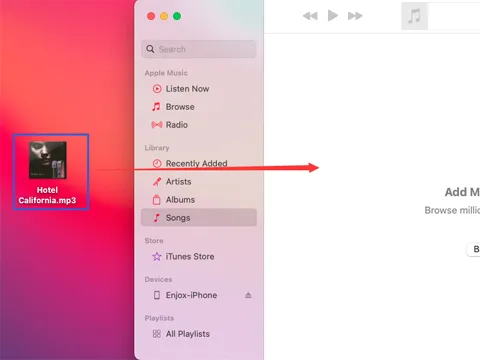
  1. すべての音楽を「Songs」フォルダにドラッグします。
![Dragging music into the iTunes Songs folder (step 2)](/article/images/8103aea72e174712b70b43ffc4218a25.webp)
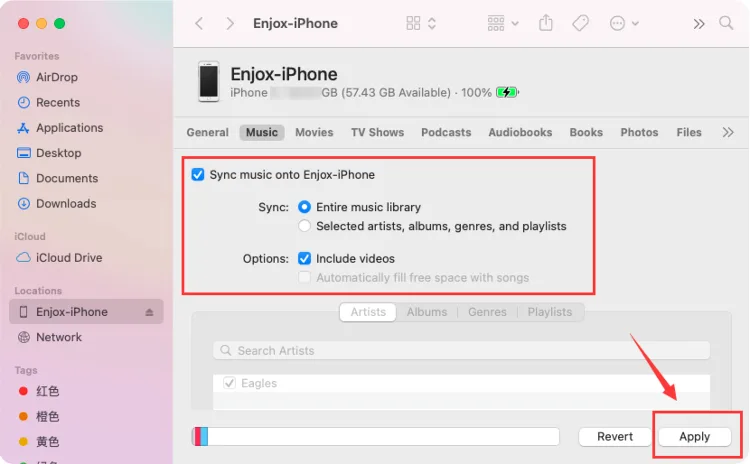
  1. 「Music」セクションに移動し、「Sync Music(音楽を同期)」をクリックします。これでスマートフォンの「Music」アプリと音楽が同期されます。
![Syncing music to an iPhone for Enjox (step 3)](/article/images/e2e67eb85e96d3f170a03df226ec5abe.webp) ![Syncing music to an iPhone for Enjox (step 4)](/article/images/dd74b96f8dd79afcd9300fa0c63054e5.webp)
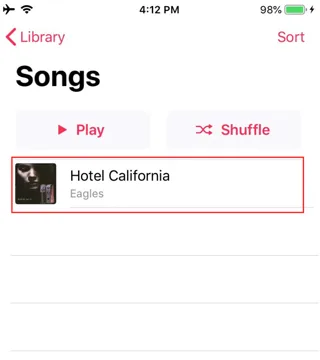
  1. スマートフォンの Music アプリを開きます。iTunes アカウントから同期された音楽が表示されます。ダウンロードアイコンがある場合は、それをクリックします(当社アプリに表示させたい曲について)。
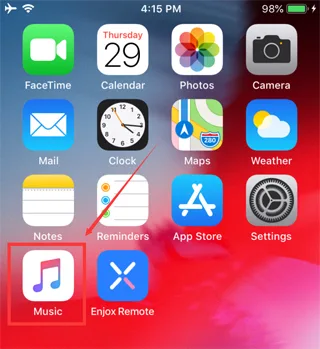
![Syncing music to an iPhone for Enjox (step 5)](/article/images/49839e37f86f10f42e40f0cb03e29330.webp) ![Syncing music to an iPhone for Enjox (step 6)](/article/images/3185419e8b532ce602f1f2d25bbe0e9a.webp)
  1. Enjox Remote アプリを開きます。ダウンロードした音楽が表示されます。
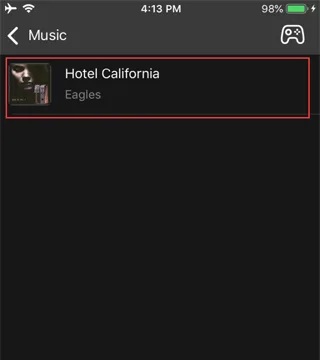
![Downloaded music shown in the Enjox Remote app on iPhone (step 7)](/article/images/215158fe048147ddd2c3460cba150439.webp)

Our site uses cookies. By continuing to use our site, you agree to the use of cookies. For more information about the use of cookies on our website, please see our Cookie Policy.